I have been interested in the capabilities of "vibe" coded applications and really wanted to see how far I could get with a real use case that I have a need for: a product that I can adapt to fit my needs.
Just for context, I haven't really touched application code in any meaningful way in about 10 years since finishing my CS degree.
Enter CW TIP Top - excuse the name, this is where my creativity lapses, it's just a placeholder for now.
I linked up my VS Code application to Claude Code, set that as a contributor to my private GitHub repo and got to work.
First Iteration
I had to decide between web and desktop as an application starting point. From some of the threat intelligence that's produced, I wanted to have certain desktop functionality which isn't available for a web app (you will see this later). I do want to extend this into a web app, however security considerations and access control will need to be managed initially.
Creating an MVP
I created a MoSCoW list (Must have, Should have, Could have, and Won't have (yet)) of features that this product should accomplish. I landed on:
Must haves
- Must be able to store indicators
- Must be able to search indicators that have been stored
- Must have the ability to use STIX formatting
Should haves
- Should be able to ingest a document and pull out IOCs from PDFs and DOCX documents
- Should be able to ingest a web page and pull IOCs
- Should search external sources such as urlscan, VirusTotal, AbuseIPDB, MalwareBazaar, etc.
Could haves
- For a pasted text selection, could pull out all IOCs
- Could use OCR to take a screen grab of a site and grab IOCs
Won't haves (yet)
- (Next iteration) Use the threat intelligence API to distribute the IOCs directly into a SIEM - this would ideally be done through a TIP
Due to Python's modular nature and its ability to integrate with threat intelligence products off the shelf, Python was chosen to complete this task with tkinter as the GUI module.
The Interface
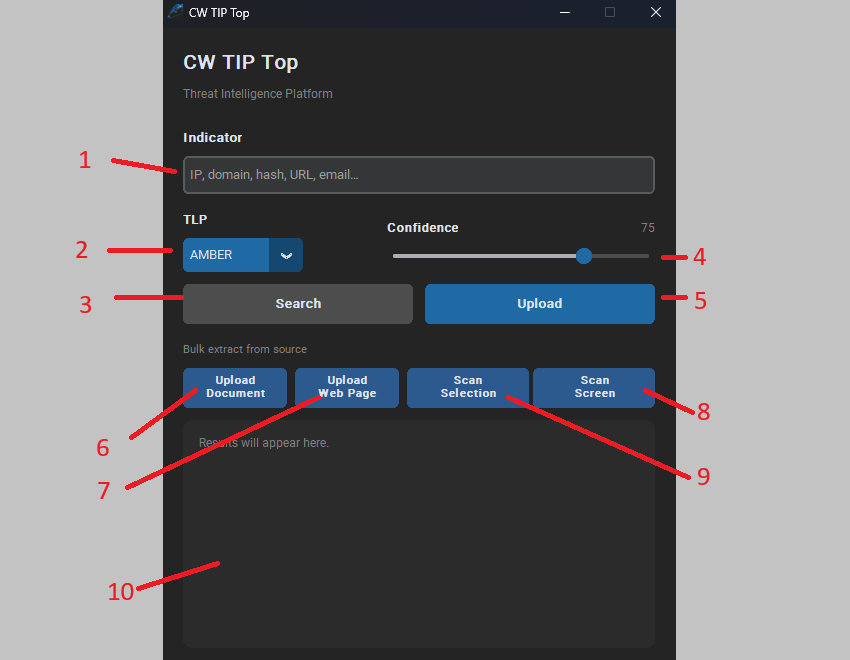
The GUI surfaces the following controls:
- Indicator input - manually enter an IP, domain, hash, URL, or email address
- TLP - Traffic Light Protocol classification for the indicator
- Search - search for the indicator across internal and external sources
- Confidence - a confidence metric for the indicator (0-100 slider)
- Upload - upload the indicator to the TIP
- Upload Document - drop in a PDF, Word doc, HTML file, or plain text. The app parses it and surfaces every IP, domain, URL, file hash, and email address it finds.
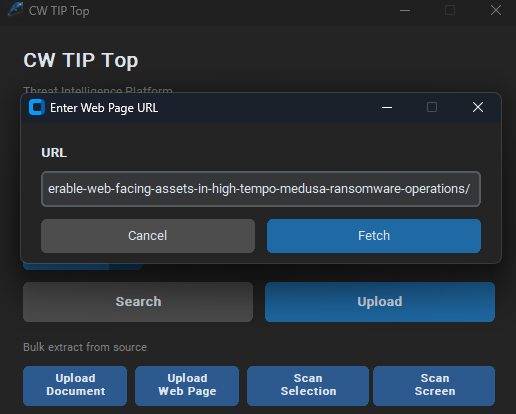
- Upload Web Page - paste a URL and the app fetches the page using a full browser user-agent (so security blogs don't block it), then runs the same extraction. Defanged indicators (
185.135.86[.]149,hxxps://,sfrclak[.]com) are automatically refanged before matching. - Scan Selection - paste any block of text directly into a quick-capture dialog and scan it on the spot.
- Scan Screen - a fullscreen overlay lets you draw a rectangle around anything on screen; OCR extracts the text and the same indicator pipeline runs over the result.
- Output panel - results and indicator detail are displayed here.
Searching for an Indicator
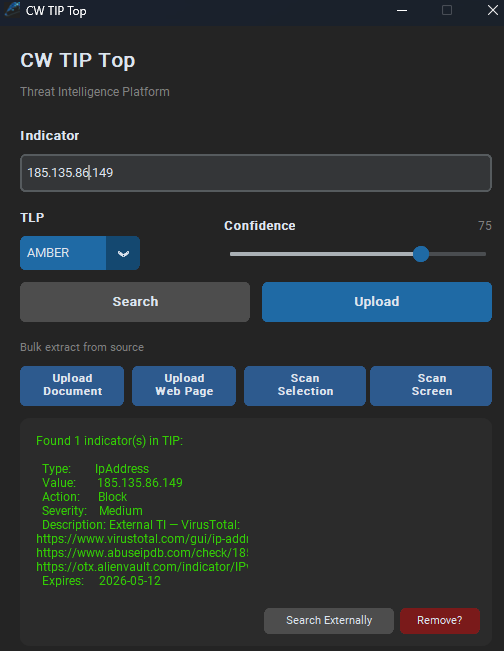
When an indicator is searched, the tool first checks the internal repository. If a match is found, the full record is displayed: type, value, action, severity, description, and expiry. From this view, you can still search externally or remove the indicator from the store.
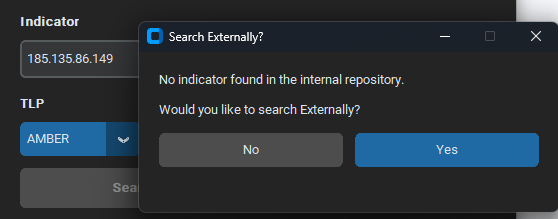
If the indicator is not in the internal repository, a prompt asks whether you would like to search externally.
External Threat Intelligence
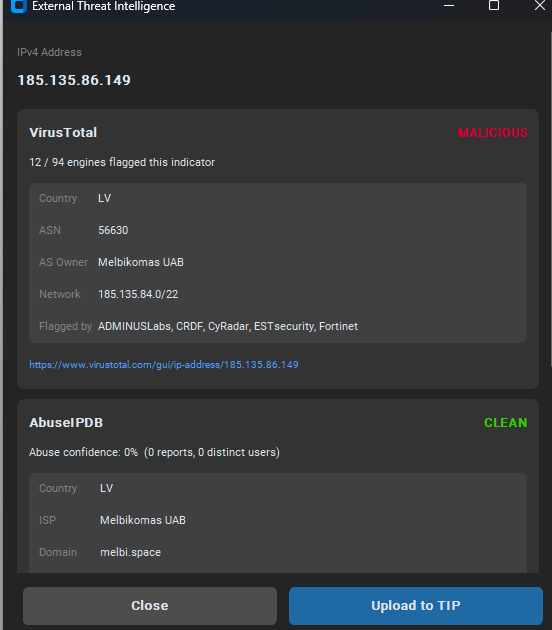
Selecting yes triggers an external lookup and surfaces results from VirusTotal and AbuseIPDB side by side. For example, searching 185.135.86.149 returns a MALICIOUS verdict from VirusTotal (12 out of 94 engines flagged, including ADMINUSLabs, CRDF, CyRadar, ESTsecurity, and Fortinet), with the ASN details for Melbikomas UAB and a CLEAN result from AbuseIPDB with 0 reports. From this view you can upload the indicator directly to the TIP.
Adding to the TIP
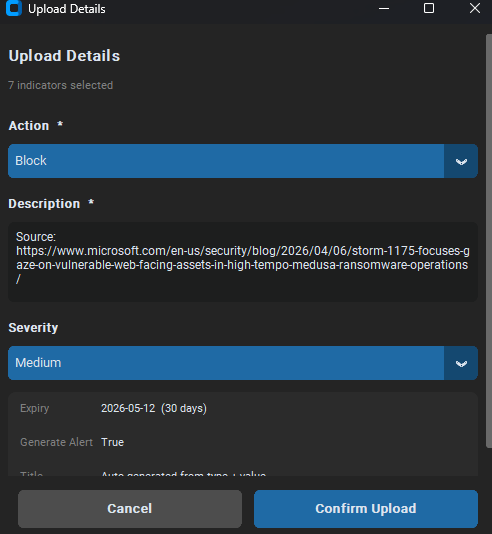
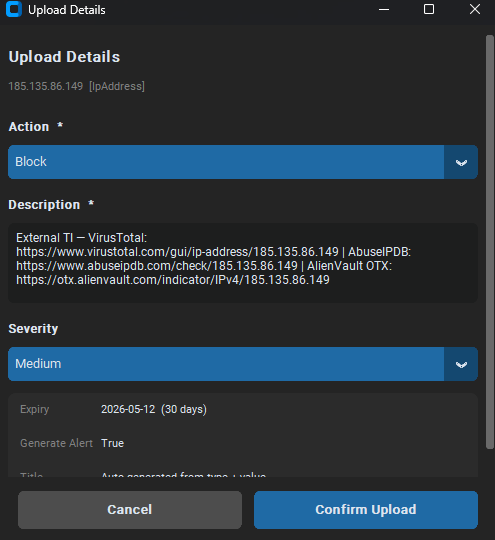
The Upload Details screen allows you to set the action, description, and severity before confirming. The action field maps to Microsoft XDR actions (such as audit, alert, and allow), and therefore once added to the SIEM this indicator will be blocked. The description is pre-populated with the external TI sources (VirusTotal, AbuseIPDB, AlienVault OTX links), severity defaults to Medium, expiry to 30 days, and an alert is generated on upload.
Bulk Extraction from a Web Page
Pasting a URL into the Upload Web Page dialog fetches the full page and runs the indicator extraction pipeline over the content.
The Confirm Indicators screen groups results by type (HASH-SHA256, IPV4, etc.) with checkboxes against each, so you can deselect any false positives before uploading.
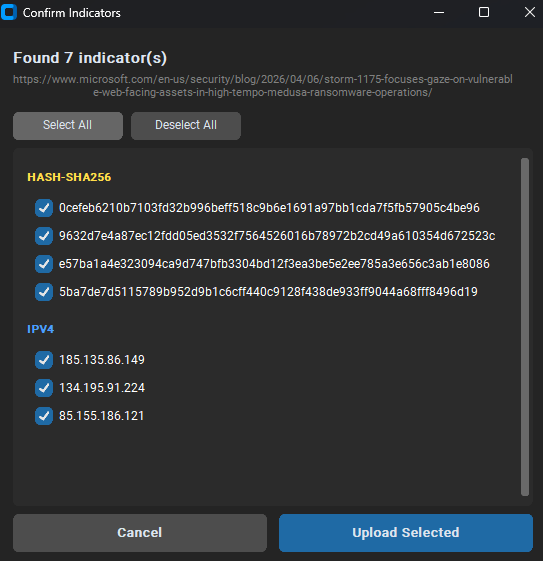
Uploading multiple indicators at once sets a shared source URL as the description, with the same action, severity, and expiry controls as a single indicator upload.